Many web apps today require the user to login first. On the surface, this is relatively straight-forward for Silverlight. Just ask the user in the opening usercontrol for their login and proceed by calling a webservice to validate their login. But often you need to provide more than one way to log into your Silverlight application. For example, imagine you want a nice little login box in a corner of your site’s home page so users can easily jump right into the app.
Unless you’re going to embed your SL app in a little corner of your home page, you will presumably be offering the user the ability to input their username and password from a DHTML-based login box. Go to the GMail homepage to see an example of putting a small login in the corner of a homepage — I know, gmail doesn’t use SL to power the gmail client, but you can close your eyes and pretend 😉
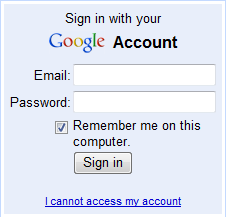
The question then is: how do we get these credentials safely to your Silverlight app?
Step 1: Post the login info to the webpage hosting your your Silverlight app.
Use something like the following html on the page you want to login from:
<form action=”./App/default.aspx” method=”post”>
<table>
<tr>
<td>Username:</td>
<td><input type=”text” name=”username” /></td>
</tr>
<tr>
<td>Password:</td>
<td><input type=”password” name=”password” /></td>
</tr>
</table>
<div><input type=”submit” value=”Login” /></div>
</form>
WARNING: Always use HTTPS. Otherwise, the username and password will be totally unprotected when being sent over the internet.
Step 2: Pass a protected version of the login information to your Silverlight xap.
In the server-side script that handles the post (and hosts your Silverlight app), you can easily pass information down to the client thru a number of ways.
1) Putting the information in the querystring.
2) Putting the information in a cookie.
3) Embedding the information in the initParams parameter of the Object tag that contains your Silverlight app (this can be done indirectly by setting the InitParameters property of the ASP.NET Silverlight control).
Check out Tim Heuer’s video for more info on options 1 and 3.
Here’s where it gets tricky… Regardless of which approach we choose, we must take care when the information we’re passing along is the user’s password! In all 3 methods above, the information passed along is ultimately saved somewhere unencrypted on the user’s hard drive. Not good! In the first option (the querystring), the information can be seen in the browser history because it is part of the url and the browser remembers this info by storing it in a file somewhere on the user’s hard drive. Cookies are also stored as unencrypted data on the user’s harddrive, as is any html page source when it is cached. That’s right: Setting initParams puts that data right in your HTML only to be cached on the user’s harddrive.
Therefore, we need to find a good way to keep the user’s data protected. Here are three options (with one clear winner).
1) Encrypt the password. While this helps make sure that only an encrypted password ends up on the user’s drivedrive, consider this: Either you would need to unencrypt the password on the client before sending it up to the server (which means you have to put your encryption key in your code – NOT GOOD) or you’d have to create a webservice that can accept an encrypted password as a way to login… which means that your encrypted password would be just as useful for logging on as the real thing! Either way, you leave a hole that could be exploited.
2) Hash the password (presumably exactly the way you would hash the password before storing it in the database). However, this creates the same problem as mentioned above with encryption, for this to be useful as a login credential, you would have to have a webservice that could use the hashed password as a valid login credential which would make the hashed password just as valuable as the real deal.
3) The clear winner: Create and send down a token or session ID that can be used to look up their login information one time only. First off, this is better because no variation of the password is actually stored on the user’s harddrive, just a random ID (a bonus because given enough resources, any encrypted data can technically still be cracked). Secondly, this token or session Id would be destroyed almost immediately after it was issued so even if someone did get ahold of it, it would almost certainly be useless by that point.
Step 3: Retrieve the username and password from Silverlight.
We can see the finish line! The only thing left to do is retrieve the token or session ID from within your Silverlight app and pass that up to the server instead of the username and password. If you passed your token thru the query string you can access it from within Silverlight via the QueryString dictionary object:
Dim LoginToken As String = System.Windows.Browser.HtmlPage.Document.QueryString("LoginToken")
If you passed it via the Silverlight object’s initParams parameter you can access it in the StartupEventArgs.InitParams dictionary that is passed into the Application Startup event:
Private Sub Application_Startup(ByVal o As Object, ByVal e As StartupEventArgs) Handles Me.Startup
Dim LoginToken As String = Nothing
If e.InitParams.ContainsKey("LoginToken") Then
LoginToken = e.InitParams("LoginToken")
End If
End Sub
And if you set a cookie, you can access it via:
Dim Cookies As New Dictionary(Of String, String)
Dim CookieEntries() As String = _
Split(Browser.HtmlPage.Document.Cookies, ";"c)
For Each Entry In CookieEntries
Dim KeyValue() As String = Split(Entry, "="c)
Cookies.Add(KeyValue(0), KeyValue(1))
Next
Dim LoginToken As String = Cookies("LoginToken")
And there we have it! Once you have your LoginToken, create a webservice that can accept it as valid login information. On the service end, use it to look up your login information (stored in a session variable or database). And purge that data immediately on use. This way no one can ever reuse that LoginToken again.
And in the end you have a secure technique used to safely allow your users to login to your Silverlight applicaton from other places. Ultimately making your application more prominant and accessible to users.
Check out the source code here for a practical demonstration of the concepts discussed above. Both client and server projects are included.




 Programmer Payback